










Start from the intended active version and prioritise open work using scope, owner and due date.
Before you start
- Choose the active template and location.
- Confirm owner and operational deadline.
Start from the right version
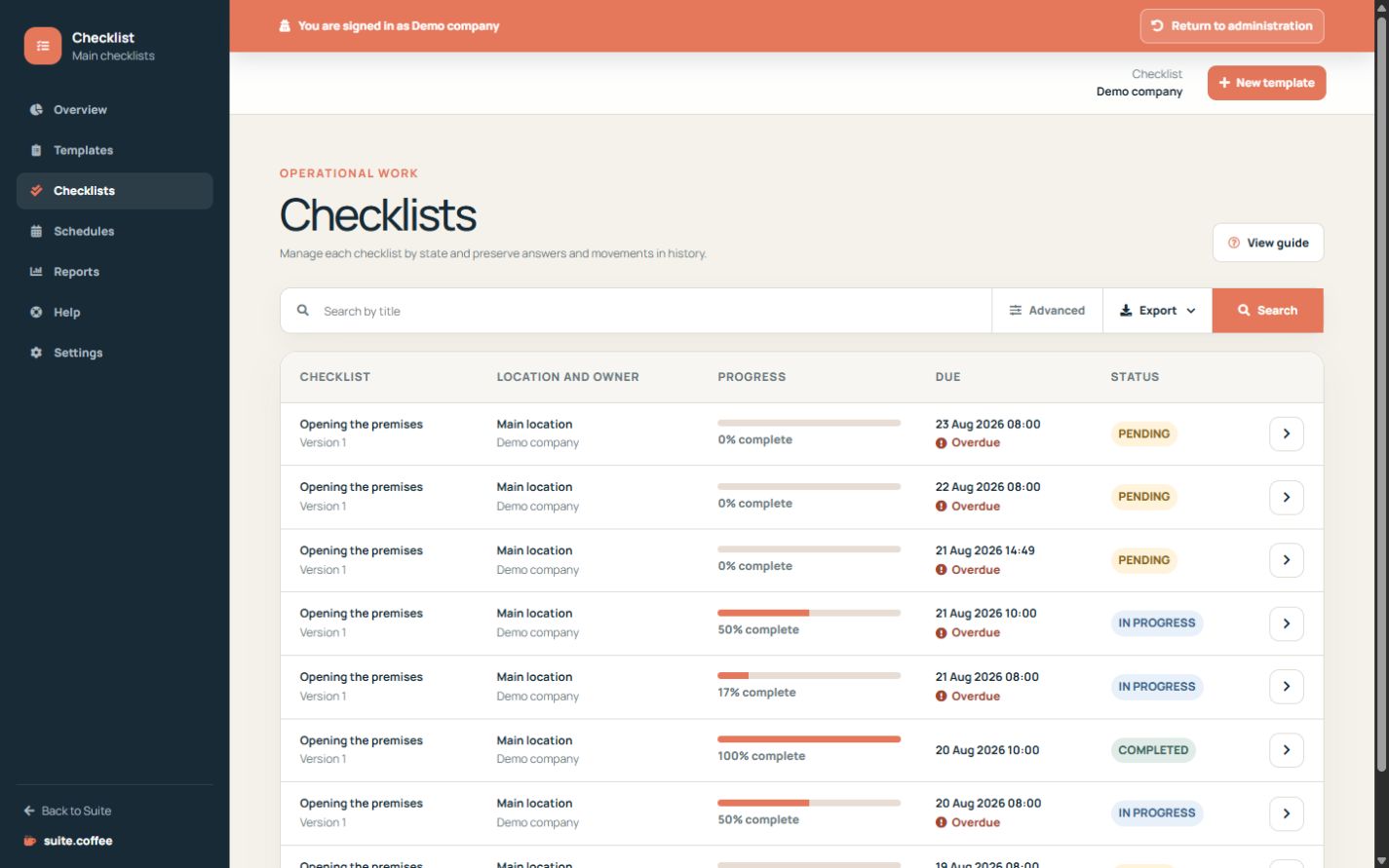
Choose an active template, optional location, owner and due date. Operational users starting work for themselves become its owner; managers can assign another valid worker.
Use the work list
Search by title and filter by status or location. Pending, in-progress, completed and overdue indicators help prioritise, but an overdue checklist remains open until its tasks are completed.
Understand the monthly limit
The plan counts checklists created in the calendar month of the configured timezone, whether started manually or generated by a schedule. Reaching the limit preserves existing work.
Step by step
- Open Checklists or the overview.
- Search for an existing run before creating another.
- Start work from the correct active template.
- Choose location, owner and due date.
- Use status and location filters to prioritise.
Final check
- The correct template version was copied.
- The owner can work in this service.
- Monthly capacity remains available.
Tip: An overdue checklist stays open until its cards actually reach the final state.